01
WALK
Do your normal safety walk.
The hazard. The detail. The thing everyone else walked past. Turn what you see into a report that gets attention.

Do your normal safety walk.
Use voice or type your findings.
Take photos while you inspect.
Generate a professional report.
Same field. Same hazards. A better way to capture what you see.
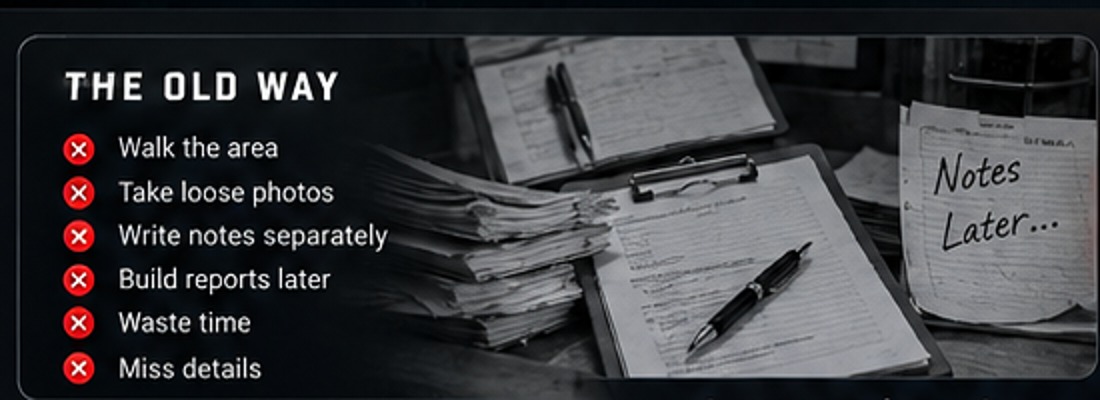
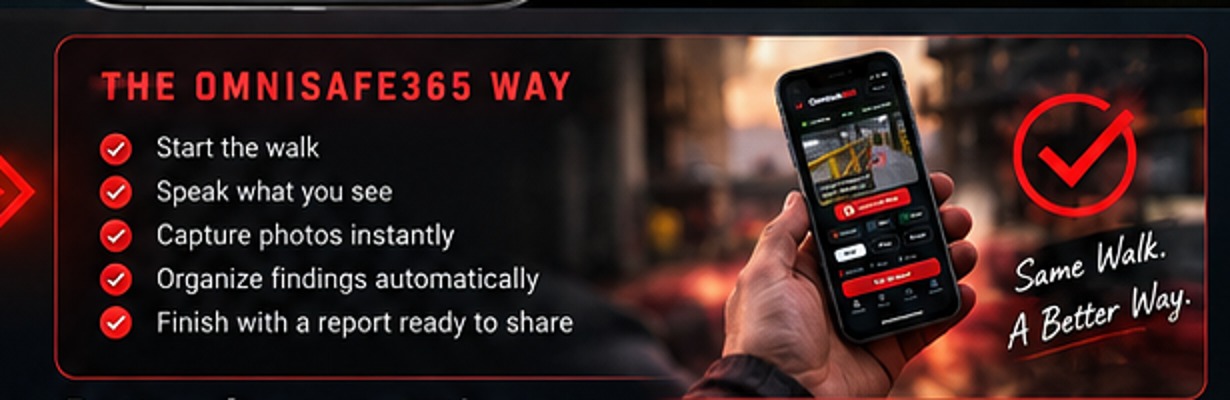
You're already walking the floor. You're already spotting hazards. OmniSafe365 simply gives you a faster way to capture what you see and turn it into a professional report.
One walk. One workflow. Start, speak, capture and report without rebuilding the inspection later.
Open OmniSafe365 and begin the walk.
Call out Hazard, Note, or Good — or type when needed.
Take the photo while the finding is active.
Review once and generate a professional report.
OmniSafe365 keeps the finding, photo and follow-up together so you are not rebuilding the inspection after you leave the floor.
Inspection completed with priority findings documented, photo evidence attached and corrective actions prepared for follow-up.
Basic is yours to keep. Pro starts with a full 7-day trial and includes the Weekly Leadership Dashboard.
Core safety walks, voice or typed findings, photos, Quick Capture, review, professional reports, download and share. One user on up to 2 registered devices.
Buy Basic — $9.99Everything in Basic plus the Weekly Leadership Dashboard, location intelligence, trends, risk mix and executive exports. One user on up to 3 registered devices.
Start 7-Day Trial →Full Pro access with annual billing, one user on up to 3 registered devices. Save $19.89 compared with paying monthly for 12 months.
Start Annual Trial →No. It is designed to make the actual field walk, evidence capture and reporting faster.
Pro rolls multiple inspections together into dashboards, location views, trends and leadership-ready weekly updates.
Yes. Use voice when it works and tap to type in loud areas.
Yes. Basic allows one user on up to 2 registered devices. Pro allows one user on up to 3. You can remove an old device from the Account screen before adding a new one.